Creating redirects in WordPress is easy, but many plugins only include this feature in their paid versions. Not Redirection! It’s an excellent free plugin and I’ll show you how to set it up from start to finish.
Bonus points for the developer regularly updating this plugin so it’s always compatible with the latest WordPress updates
Find the plugin in the WordPress Plugin Directory
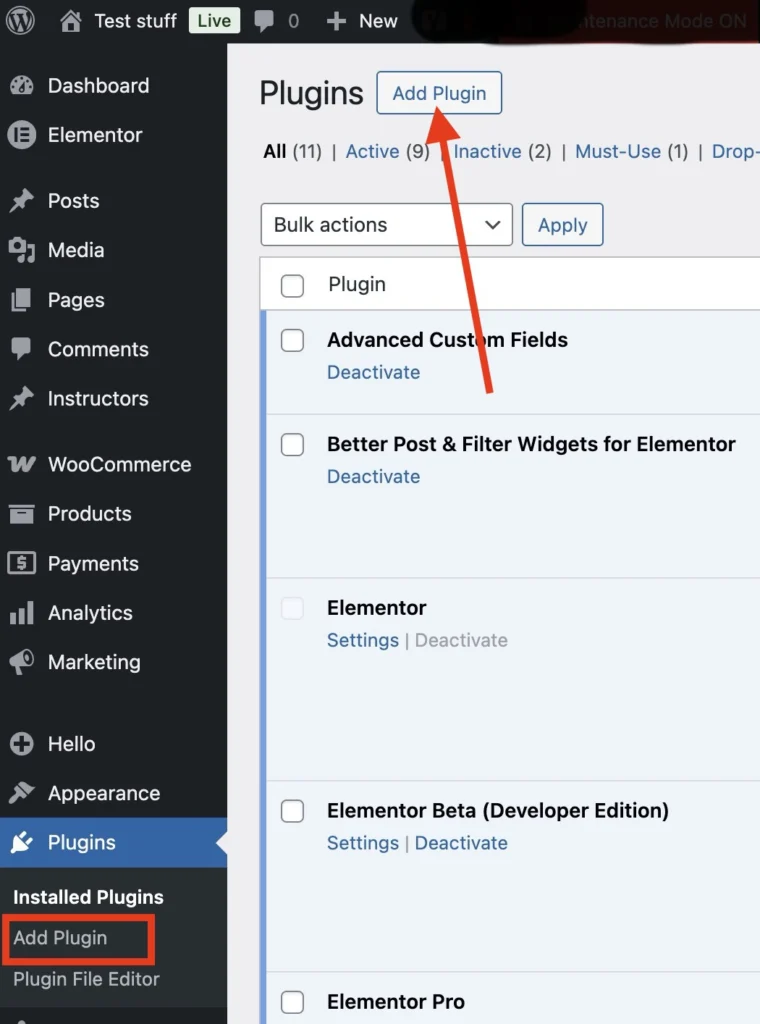
You can add a new plugin by going to “Plugins” in the left menu. From there you can either click on “add plugin” in the left menu as well or click on it at the top of the page. Both options will bring you to the WordPress Plugin Directory.
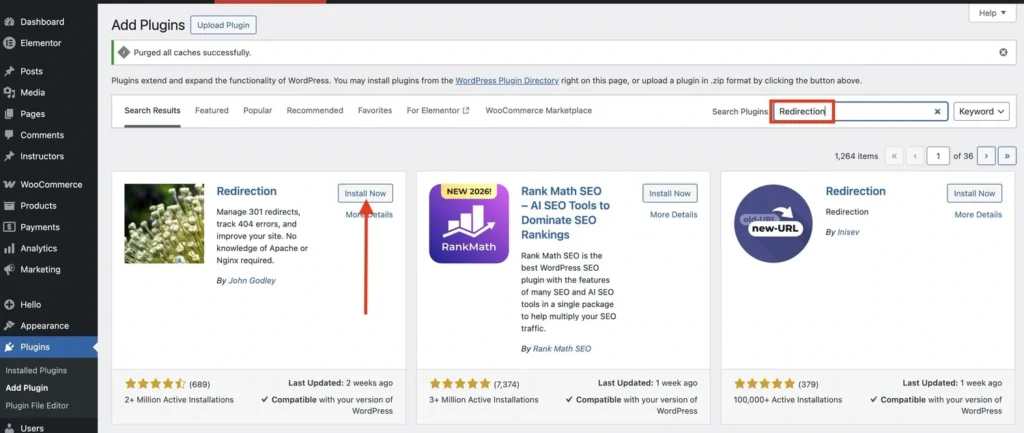
When youtype “Redirection” into the search bar on the right, the original Redirection plugin will usually appear first. It’s easy to recognize because it uses a photograph of flowers as its icon, while most other plugins use simple graphic icons.
Click on “Install Now”.
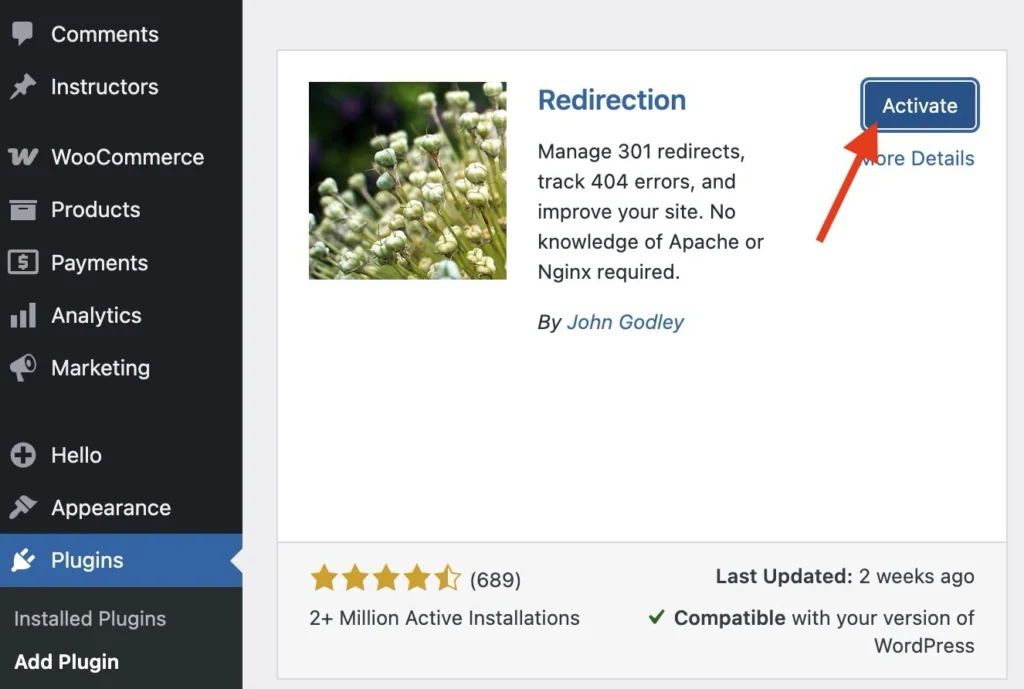
Once it’s installed, you can right away click on the “Activate button”.
The Redirection Plugin Setup
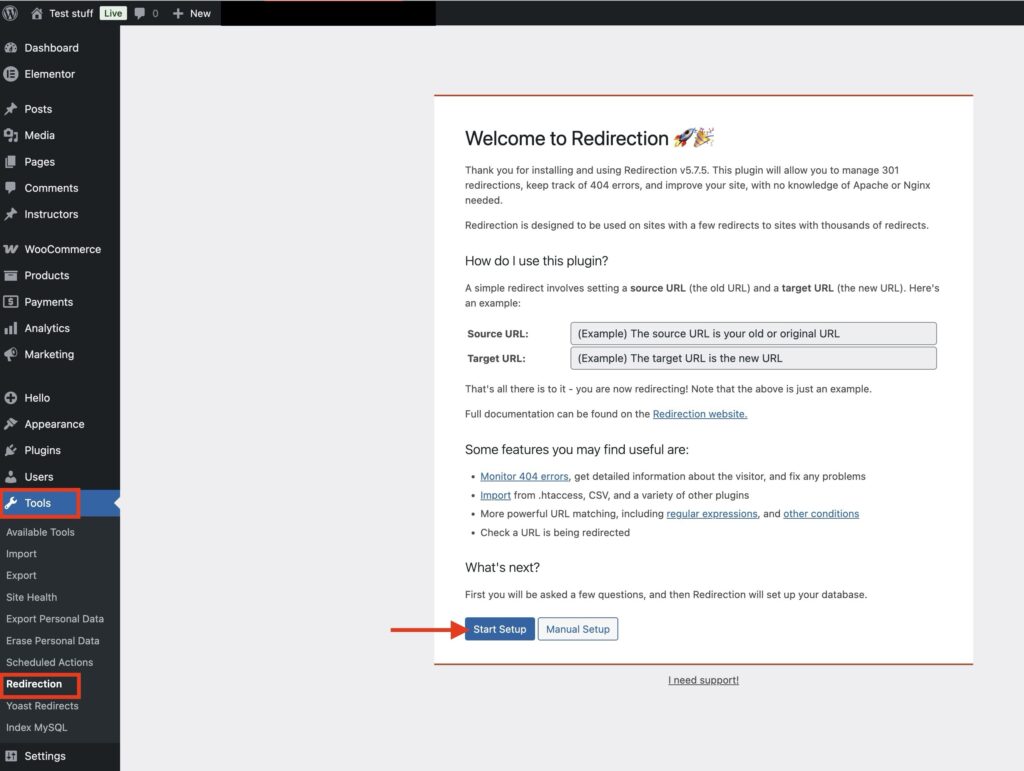
From here on you can find the Redirection plugin under “Tools” in the left menu. click on Redirection and “Start Setup”.
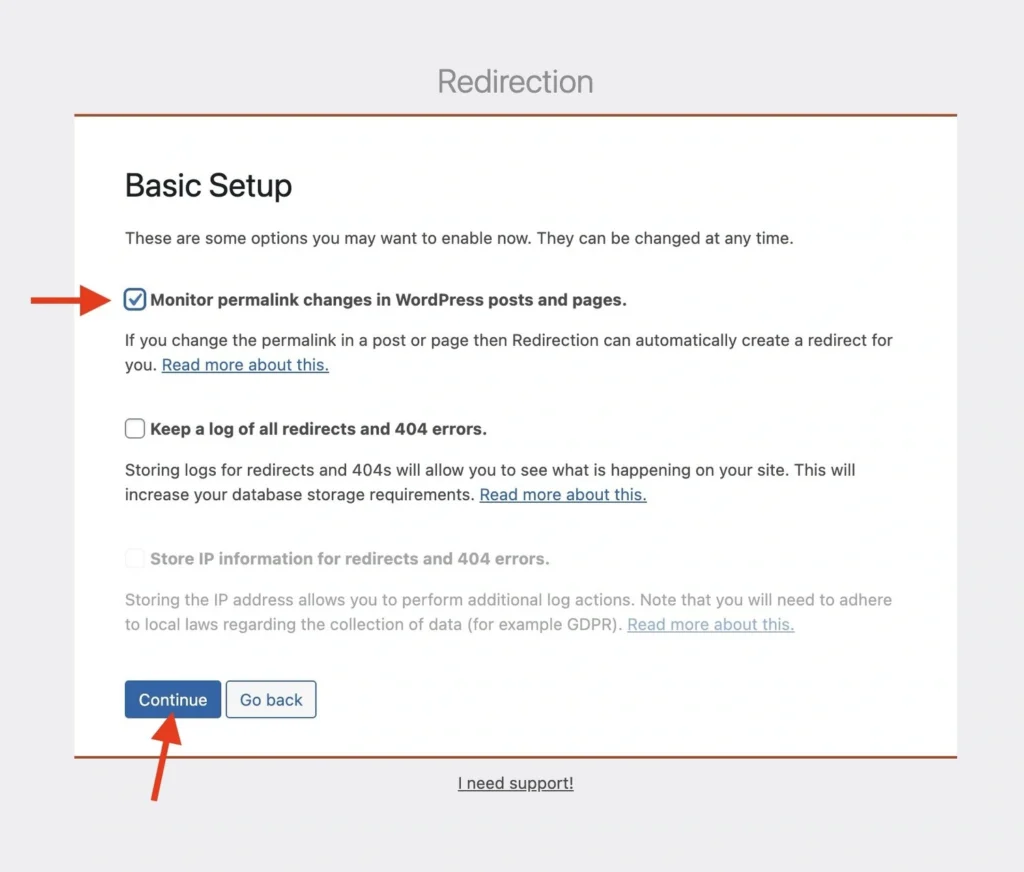
We recommend enabling permalink monitoring, which automatically creates a redirect when a URL changes. This helps prevent accidental 404 errors when you update a page URL.
We usually leave redirect and 404 logs disabled. The plugin already shows how often a redirect is used, and we prefer tracking 404 errors in Google Search Console.
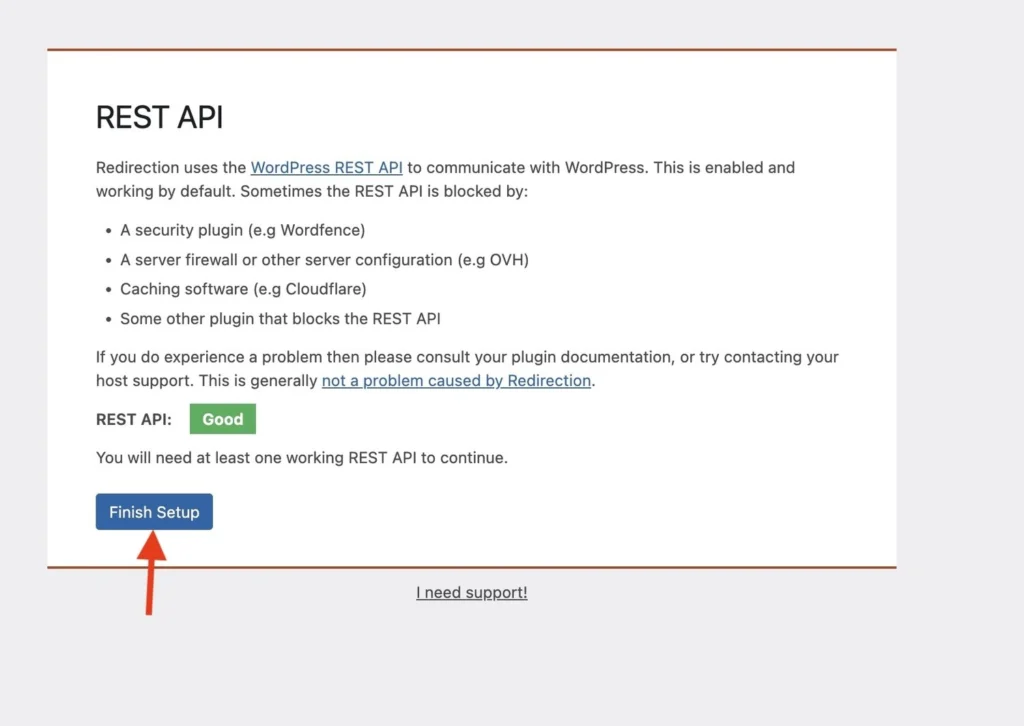
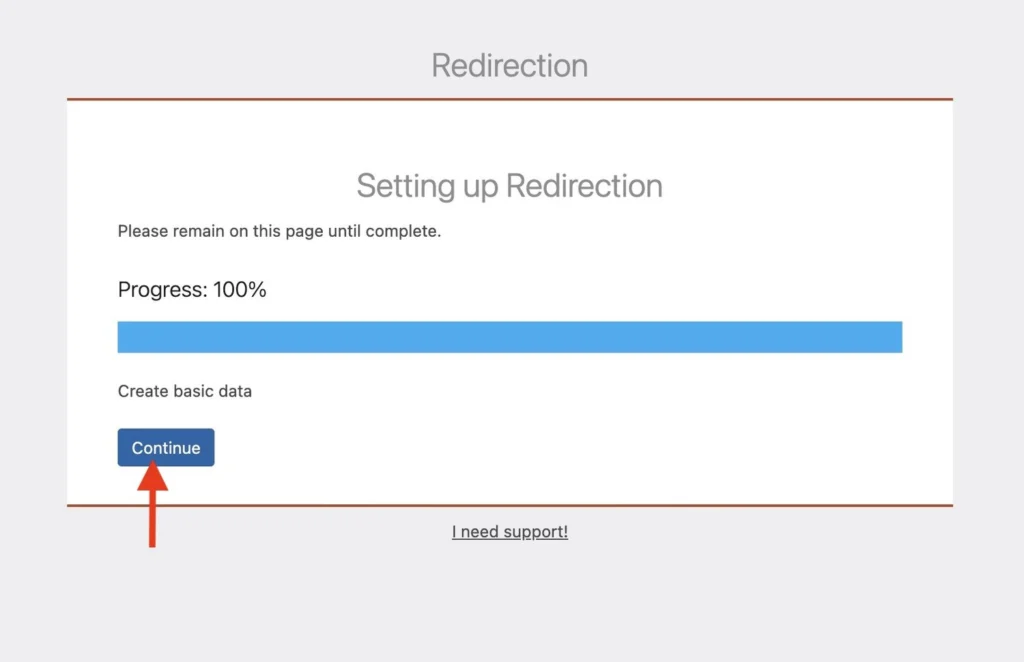
Click on “Continue” and go through the next 3 screens, clicking on the blue buttons at the bottom: “finish setup”, “Continue” and “Ready to begin”. The plugin does it’s own scans here.
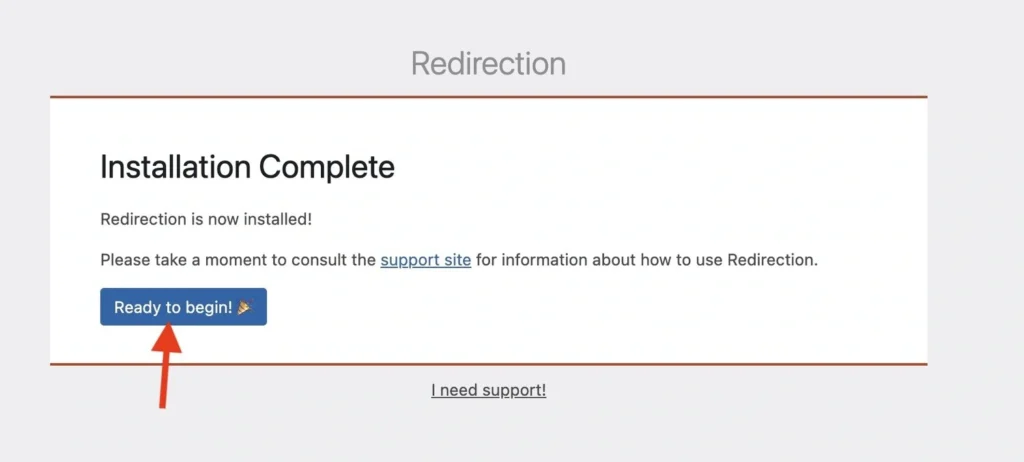
Important option to check as well
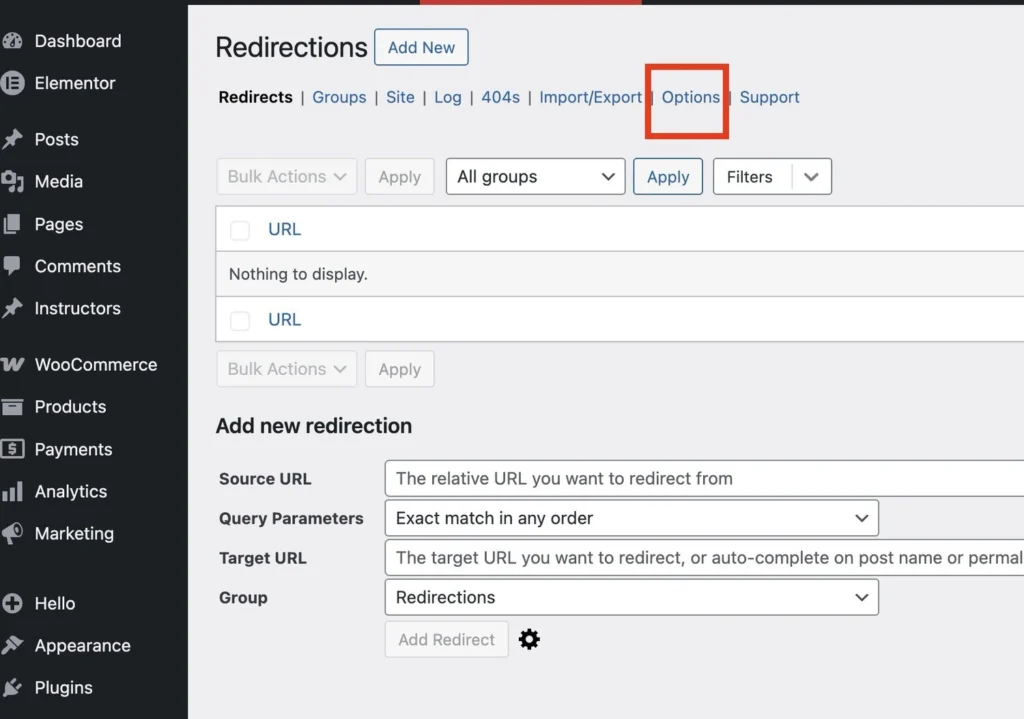
Now, while you might think the setup is all done, there’s another thing this plugin can automatically track for you that is excellent.
Click on “Options” for the final setup step.
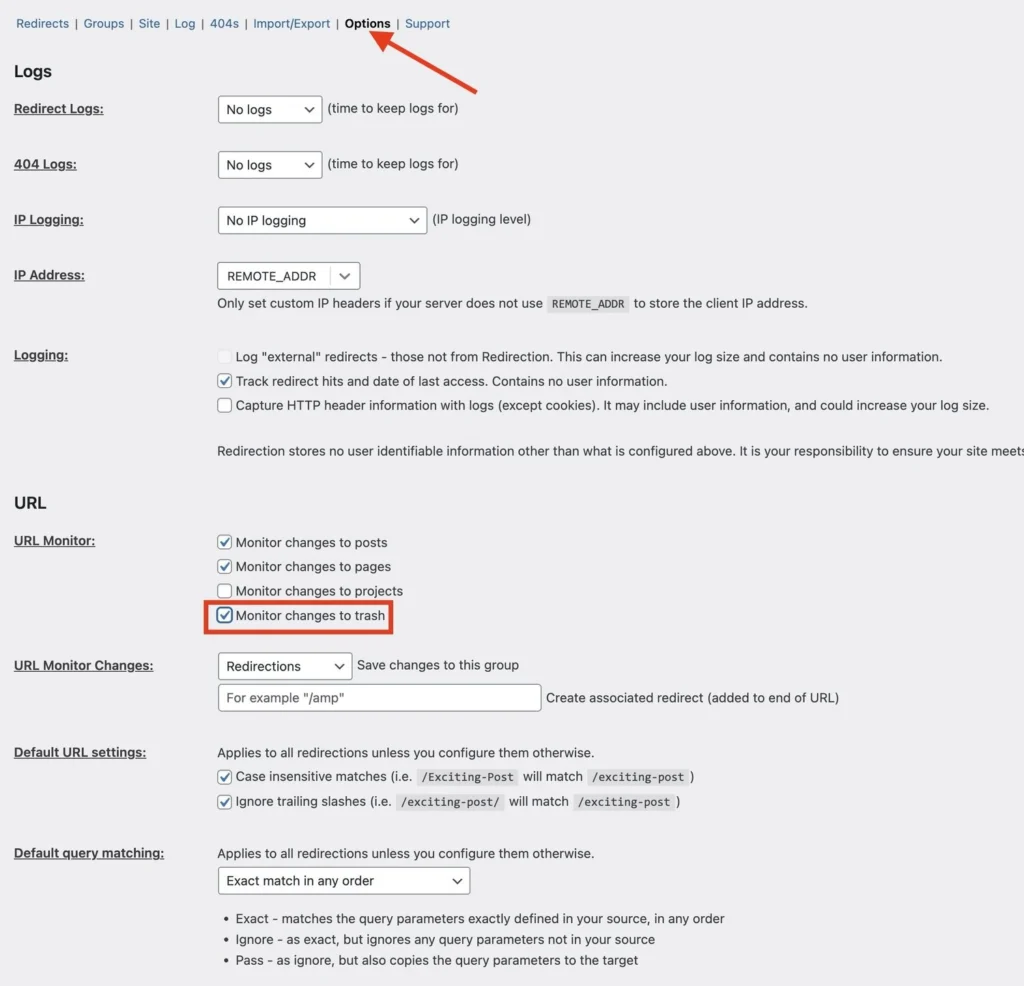
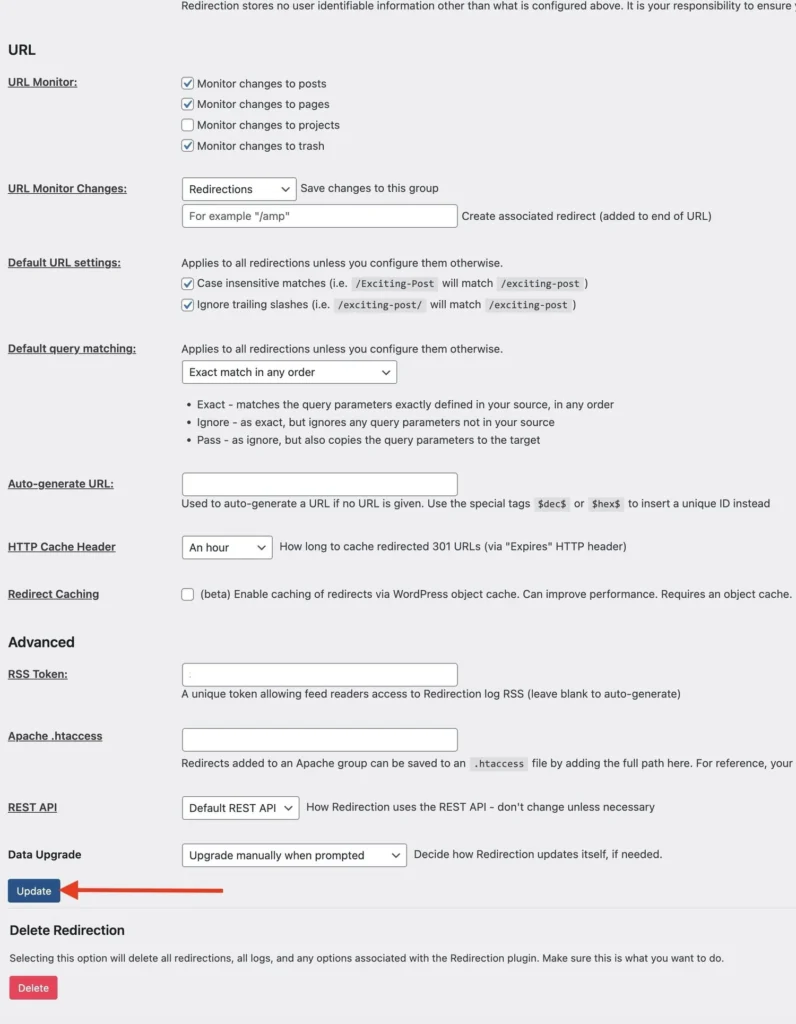
Click on “Monitor Changes to Trash”. What this does is it will show you in redirection when you’ve deleted a page or post. And you can choose to set up your own redirect. Again, this is great to make sure you don’t forget about broken links. In the second screenshot above you can see the “update button” at the bottom of the options tab. Don’t forget to click it to save your changes! It’s quite far down to page, so easy to miss.
How to create a 301 redirect in WordPress
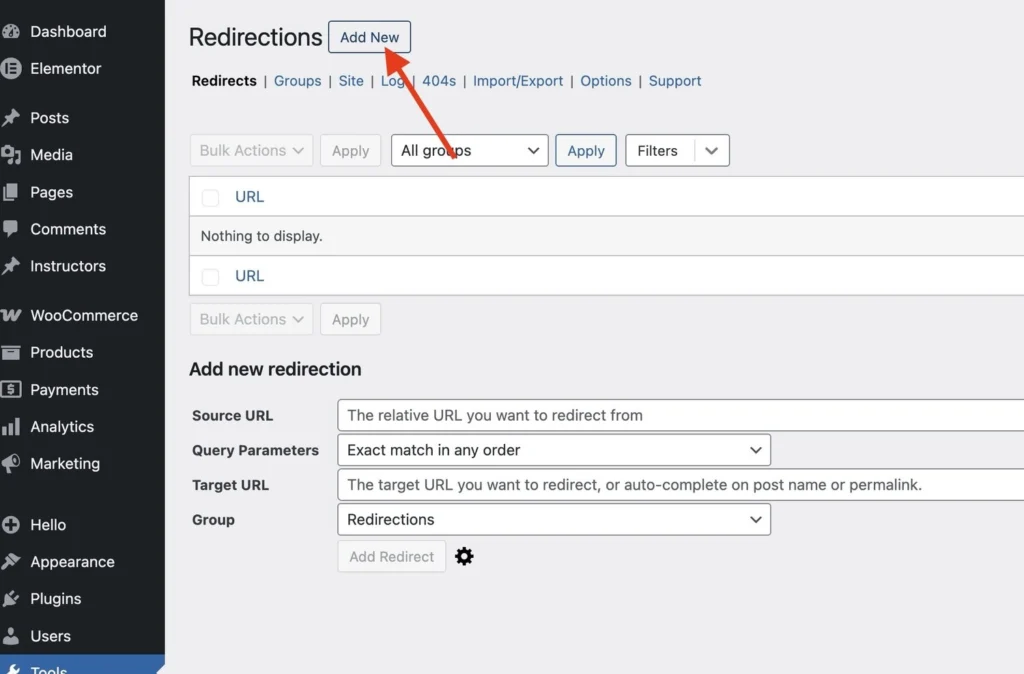
Now that the plugin is set up, you’re ready to create your first redirect. A redirect simply tells your website that an old URL should send visitors to a new URL.
Click on “Add New”.
You only need to fill out two fields:
Source URL:
This is the old URL that you want to redirect. For example, if you changed the URL of a page, you would enter the old page address here.
Target URL:
This is the new URL where visitors should be sent instead.
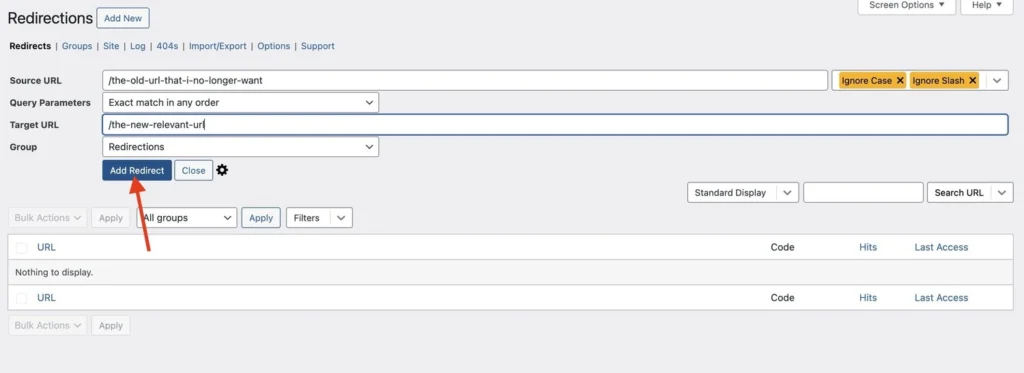
Once both fields are filled in, click “Add Redirect”.
As you can see in the example above, you don’t need to add the full url path! For example, /old-page/ instead of https://yourwebsite.com/old-page/.
This is a future proof way of doing things in case you ever want to change domain names. If you want to send a redirect to the home page, you just enter /.
The default setting is to create a 301 redirect, which is all most folks need!
Bulk redirect uploads + other functionality in Redirection
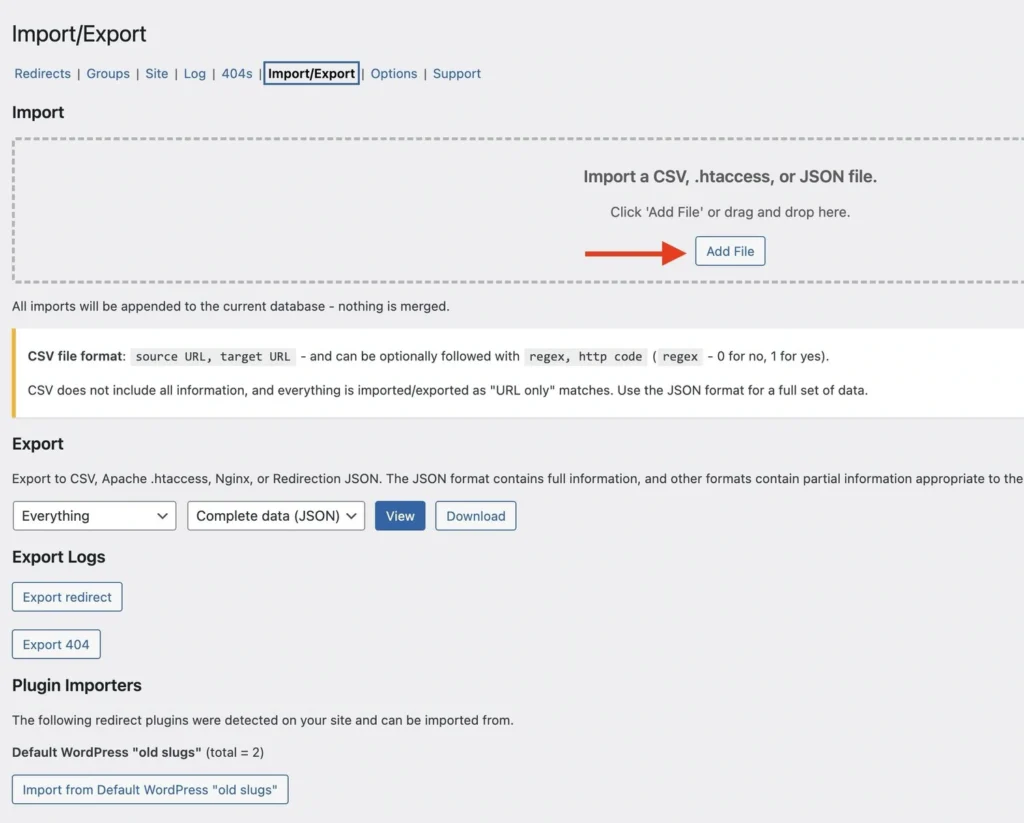
It’s also possible to upload a CSV document with urls if you have a lot of them to set up. This can be a great option when you removed a lot of content or updated your website structure. Make sure you strictly follow the correct order! source url first, next the target url. (And don’t share the full url,
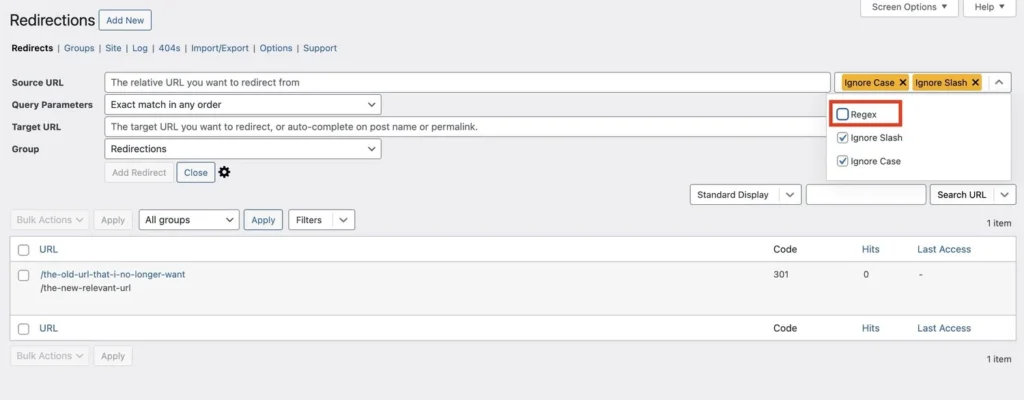
The plugin offers more options such as Regex redirects or other redirects that aren’t 301, but that might lead us too far for this article. Just keep in mind that Redirection is a powerful plugin!
If you run into trouble setting up redirects or want help cleaning up broken links on your website, feel free to send us a message. We’re happy to help you get things sorted.